GitHub Copilot
Click ★ if you like the project. Your contributions are heartily ♡ welcome.
Table of Contents
- Getting Started
- Code Completions
- Copilot Chat
- Slash Commands
- Chat Variables and Participants
- Prompt Engineering
- Copilot Edits and Agent Mode
- Security
- Extensions
- Code Reviews and Pull Requests
- Copilot Workspace
- Context and Codebase
- Custom Instructions
- Unit Test Generation
- Organization Administration
- Privacy and Data
- Language Support
- Enterprise Best Practices
- Model Context Protocol (MCP)
# 1. GETTING STARTED
Q. What is GitHub Copilot and how does it work?
GitHub Copilot is an AI-powered coding assistant developed by GitHub and OpenAI. It uses large language models (LLMs) — currently based on OpenAI's GPT-4o and specialized code models — to suggest code completions, generate functions, write tests, explain code, and assist with debugging directly inside your editor.
How it works:
- Copilot reads the context window — open files, cursor position, comments, and related files.
- It sends a prompt (your context) to the model hosted on GitHub's infrastructure.
- The model returns one or more code suggestions.
- You accept (Tab), cycle through alternatives (Alt+] / Alt+[), or dismiss (Esc).
Key capabilities (2025/2026):
- Inline code completions
- Multi-line ghost text suggestions
- Copilot Chat (conversational AI in the editor)
- Copilot Edits / Agent mode (multi-file edits)
- PR summaries and code reviews
- CLI integration (
gh copilot)
# Install GitHub CLI and GitHub Copilot CLI extension
winget install GitHub.cli
gh auth login
gh extension install github/gh-copilot

# Ask a CLI command using Copilot
gh copilot suggest "list all running docker containers with their ports"
gh copilot explain "git rebase -i HEAD~3"
# 2. CODE COMPLETIONS
Q. What are the different GitHub Copilot plans and features?
GitHub Copilot is offered in four tiers as of 2025/2026:
| Plan | Target | Key Features |
|---|---|---|
| Copilot Free | Individual developers | 2,000 completions/month, 50 chat msgs/month, limited models |
| Copilot Pro | Individual ($10/mo) | Unlimited completions + chat, all models (GPT-4o, Claude, Gemini), Copilot Edits |
| Copilot Business | Teams ($19/user/mo) | Everything in Pro + org policy controls, audit logs, IP indemnity |
| Copilot Enterprise | Large orgs ($39/user/mo) | Everything in Business + Copilot Workspace, PR summaries, codebase indexing, fine-tuning |
Model selection (Pro/Business/Enterprise):
| Model | Strengths |
|---|---|
| GPT-4o | Fast, general-purpose |
| Claude Sonnet 3.7 | Complex reasoning, long context |
| Gemini 1.5 Pro | Google ecosystem integration |
| o3-mini | Advanced math/reasoning |
// .vscode/settings.json — select default Copilot model
{
  "github.copilot.chat.defaultModel": "gpt-4o",
  "github.copilot.enable": {
    "*": true,
    "plaintext": false,
    "markdown": true
  }
}
Q. How do you install and configure GitHub Copilot in VS Code?
Installation steps:
- Open VS Code → Extensions (
Ctrl+Shift+X) - Search “GitHub Copilot” → install the GitHub Copilot extension
- Also install GitHub Copilot Chat (usually installed as a dependency)
- Sign in with your GitHub account when prompted
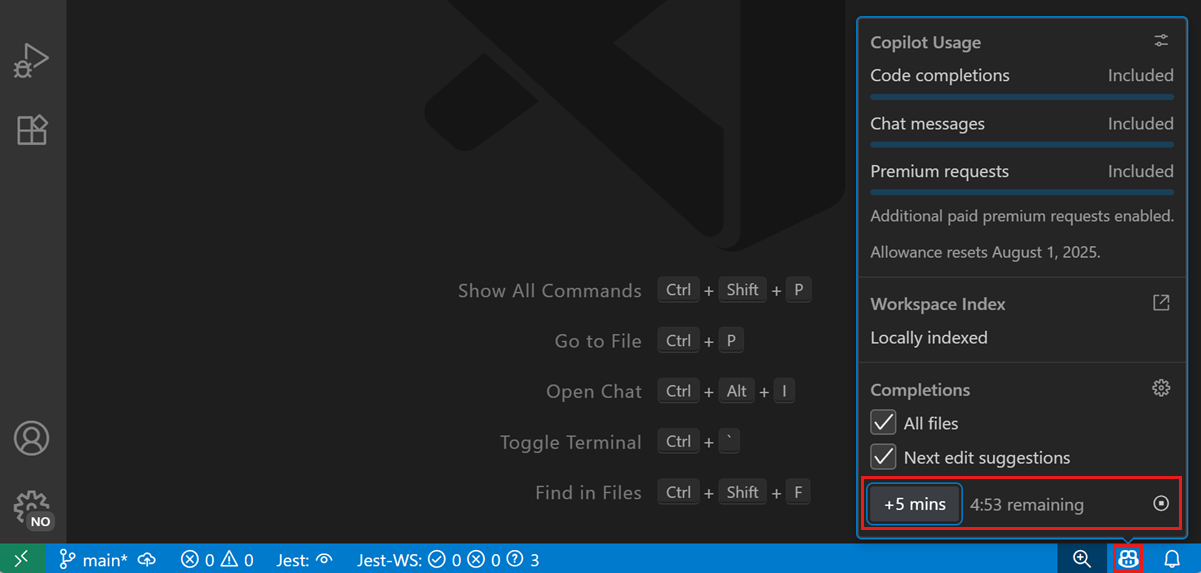
- Verify: the Copilot icon appears in the status bar (bottom right)
Configuration options in settings.json:
{
  // Enable/disable per language
  "github.copilot.enable": {
    "*": true,
    "plaintext": false,
    "markdown": true,
    "yaml": true
  },

  // Inline suggestions
  "editor.inlineSuggest.enabled": true,
  "github.copilot.inlineSuggest.enable": true,

  // Chat settings
  "github.copilot.chat.localeOverride": "en",
  "github.copilot.chat.useProjectTemplates": true,

  // Agent / Edits mode
  "github.copilot.chat.agent.thinkingTool": true
}
Key keyboard shortcuts (VS Code):
| Action | Windows/Linux | macOS |
|---|---|---|
| Accept suggestion | Tab |
Tab |
| Dismiss suggestion | Esc |
Esc |
| Next suggestion | Alt+] |
Option+] |
| Previous suggestion | Alt+[ |
Option+[ |
| Open Copilot Chat | Ctrl+Alt+I |
Ctrl+Cmd+I |
| Inline Chat | Ctrl+I |
Cmd+I |
| Open Copilot Edits | Ctrl+Shift+I |
Cmd+Shift+I |
Enable/disable inline suggestions from the Status Bar:
# 3. COPILOT CHAT
Q. How does GitHub Copilot generate inline code suggestions?
Copilot generates ghost-text suggestions as you type. The context it uses includes:
- Current file — code before and after the cursor
- Open tabs — other files open in your editor (neighboring tabs heuristic)
- Language and framework — detected from file extension and imports
- Comments and docstrings — natural language intent
- Project structure — file names and paths visible in the workspace
Example: Function completion from a comment
# Calculate the compound interest given principal, rate, time and n (compoundings per year)
def compound_interest(principal: float, rate: float, time: float, n: int = 12) -> float:
    # Copilot suggests:
    return principal * (1 + rate / n) ** (n * time)
Example: Complete a REST API handler from function signature
// GET /users/:id — return user by ID from database, 404 if not found
async function getUserById(req: Request, res: Response): Promise<void> {
  // Copilot fills in:
  const { id } = req.params;
  try {
    const user = await db.users.findUnique({ where: { id: parseInt(id) } });
    if (!user) {
      res.status(404).json({ error: 'User not found' });
      return;
    }
    res.json(user);
  } catch (error) {
    res.status(500).json({ error: 'Internal server error' });
  }
}
Tips to improve suggestions:
- Write descriptive function names and parameter names
- Add a comment describing intent before the cursor
- Keep related files open in tabs (Copilot uses neighboring tabs as context)
- Use docstring-style comments for complex logic
Ghost text inline suggestion:

Suggestion from code comment:

Hovering to see alternative suggestions:

# 4. SLASH COMMANDS
Q. What is GitHub Copilot Chat and how does it differ from inline completions?
GitHub Copilot Chat is a conversational AI interface embedded in the editor. Unlike inline completions (which auto-suggest as you type), Chat requires you to explicitly ask questions and receives full multi-paragraph responses with code blocks.
| Feature | Inline Completions | Copilot Chat |
|---|---|---|
| Trigger | Automatic (as you type) | Manual (you ask) |
| Output | Code only (ghost text) | Text + code blocks |
| Use case | Completing code in context | Explain, refactor, debug, ask questions |
| Scope | Current file/cursor | Can reference whole workspace |
| Mode | Passive | Interactive |
Chat panels available in VS Code:
- Chat view (sidebar) — persistent conversation panel
- Inline Chat (
Ctrl+I) — ask a question directly in the editor - Quick Chat (
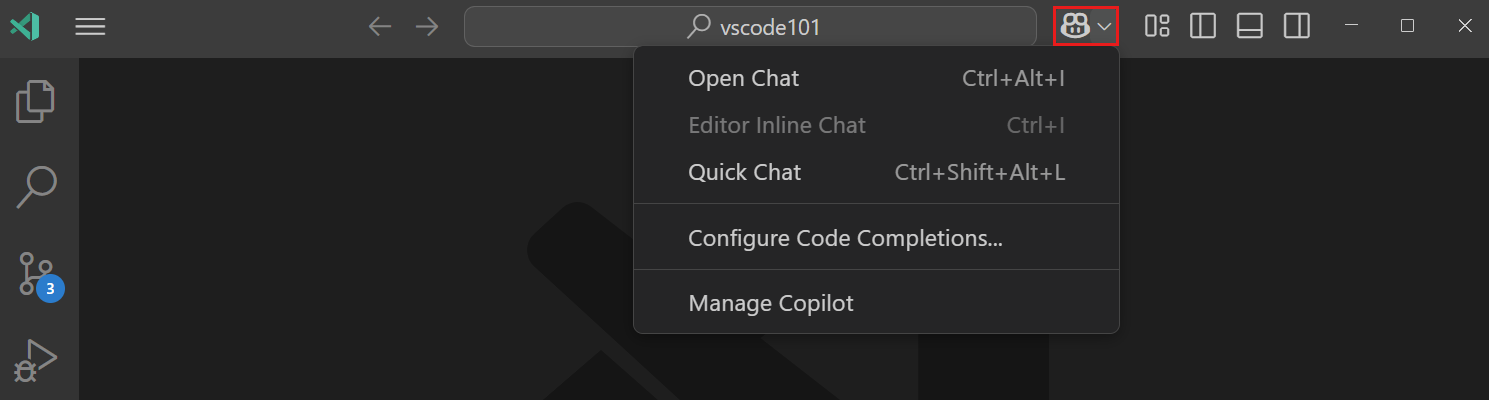
Ctrl+Shift+Alt+L) — floating chat window
Example interactions:
# In Copilot Chat:
User: What does this function do?
[select code] → right-click → Copilot → Explain

User: /fix the bug in the selected code

User: /tests generate unit tests for the UserService class

User: #file:auth.ts How is JWT validation handled in this file?
// Inline Chat example — select a function, press Ctrl+I, type:
// "Refactor this to use async/await instead of callbacks"
// Copilot rewrites the function in-place
Copilot Chat menu in the VS Code Command Center:
# 5. CHAT VARIABLES AND PARTICIPANTS
Q. What are slash commands in GitHub Copilot Chat?
Slash commands are shortcuts in Copilot Chat that trigger specific actions on selected code or files, so you don't have to write detailed prompts every time.
| Command | Action |
|---|---|
/explain |
Explain how the selected code works |
/fix |
Suggest a fix for problems in selected code |
/tests |
Generate unit tests for selected code |
/doc |
Add documentation comments to selected code |
/simplify |
Simplify selected code |
/new |
Create a new project/file from a description |
/newNotebook |
Create a new Jupyter notebook |
/clear |
Clear the chat history |
/help |
Show available commands |
Examples:
# Explain a complex regex
/explain (?<![a-zA-Z0-9._%+-])([a-zA-Z0-9._%+-]+@[a-zA-Z0-9.-]+\.[a-zA-Z]{2,})

# Fix a bug in selected code
/fix  ← (with buggy code selected)

# Generate tests
/tests generate tests for the PaymentService class using Jest

# Document a class
/doc  ← (with a class selected)
# Before /doc:
def retry(func, max_attempts=3, delay=1.0):
    for attempt in range(max_attempts):
        try:
            return func()
        except Exception as e:
            if attempt == max_attempts - 1:
                raise
            time.sleep(delay)

# After /doc (Copilot generates):
def retry(func, max_attempts=3, delay=1.0):
    """
    Retry a function call up to max_attempts times with a delay between retries.

    Args:
        func: Callable to execute.
        max_attempts: Maximum number of retry attempts (default: 3).
        delay: Seconds to wait between retries (default: 1.0).

    Returns:
        The return value of func on success.

    Raises:
        Exception: Re-raises the last exception if all retries fail.
    """
    for attempt in range(max_attempts):
        try:
            return func()
        except Exception as e:
            if attempt == max_attempts - 1:
                raise
            time.sleep(delay)
# 6. PROMPT ENGINEERING
Q. What are chat variables and participants in Copilot Chat?
Chat variables (prefixed with #) attach specific context to your prompt — files, symbols, selections, or the terminal output — without copy-pasting content manually.
| Variable | Description |
|---|---|
#file |
Include a specific file as context |
#selection |
Include currently selected code |
#editor |
Include the active editor's content |
#codebase |
Search the entire indexed codebase |
#terminalLastCommand |
Include last terminal command + output |
#terminalSelection |
Include selected text from the terminal |
Chat participants (prefixed with @) route your question to a specialized agent:
| Participant | Purpose |
|---|---|
@workspace |
Ask questions about the entire codebase |
@vscode |
Questions about VS Code settings and extensions |
@terminal |
Help with terminal commands |
@github |
Search GitHub issues, PRs, and docs |
Examples:
# Ask about a specific file
#file:src/auth/jwt.service.ts Explain how token refresh is implemented

# Use codebase search
@workspace Where is the database connection string configured?

# Reference last terminal error
#terminalLastCommand What caused this error and how do I fix it?

# VS Code settings help
@vscode How do I configure multi-root workspaces?

# GitHub search
@github What\'s new in the latest release of this repository?
# 7. COPILOT EDITS AND AGENT MODE
Q. How do you write effective prompts for GitHub Copilot?
Good prompts give Copilot enough context to generate accurate, relevant code. Follow these principles:
1. Be specific and explicit
# Vague prompt (poor):
# function to process data

# Better prompt:
# Parse a CSV file at the given path and return a list of dicts.
# Skip rows where the 'status' column is 'inactive'.
# Handle FileNotFoundError by raising a ValueError with a descriptive message.
def parse_active_users(csv_path: str) -> list[dict]:
2. Provide input/output examples
// Convert a snake_case string to camelCase.
// Examples: "user_first_name" → "userFirstName", "api_key" → "apiKey"
function toCamelCase(str) {
3. Reference existing patterns in comments
// Similar to the existing UserRepository.findById() pattern in src/repositories/user.repo.ts,
// implement findByEmail that queries by email and throws NotFoundException if not found
async findByEmail(email: string): Promise<User> {
4. Use docstrings to drive implementation
/// <summary>
/// Validates a credit card number using the Luhn algorithm.
/// Returns true if valid, false otherwise.
/// Throws ArgumentException if the input is null or empty.
/// </summary>
/// <param name="cardNumber">Card number string, digits only.</param>
public static bool ValidateCreditCard(string cardNumber)
{
    // Copilot fills in the full Luhn implementation
}
5. Iterate with inline chat
Select generated code → Ctrl+I → "Make this thread-safe using a lock"
Select generated code → Ctrl+I → "Add input validation and return error messages"
# 8. SECURITY
Q. What is GitHub Copilot Edits (agent mode)?
GitHub Copilot Edits (also called Agent mode in VS Code) allows Copilot to autonomously make changes across multiple files in your workspace to complete a larger task. Unlike inline completions or Chat (single file), Edits plans and executes multi-step code changes.
How it works:
- Open the Copilot Edits panel (
Ctrl+Shift+I) - Add working set files (the files Copilot can edit)
- Describe the task in natural language
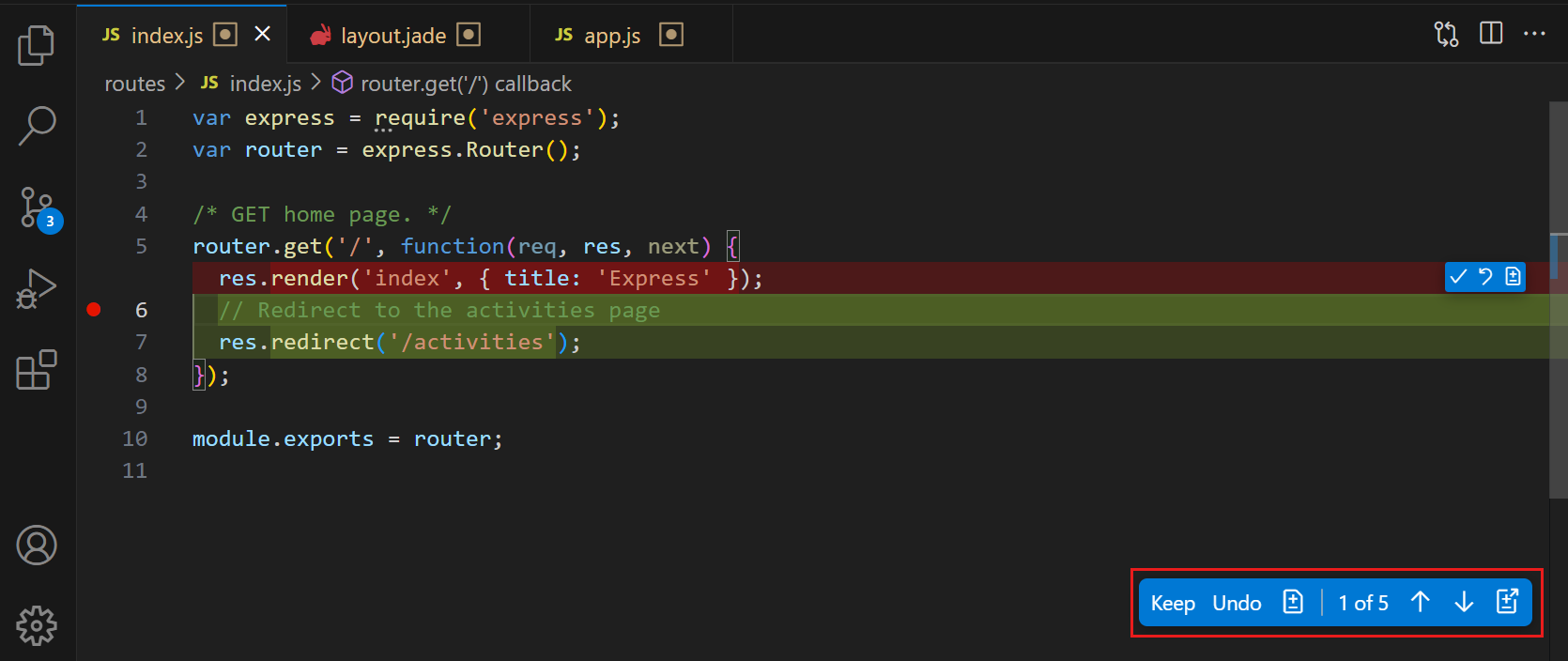
- Copilot creates an edit plan, makes changes, and shows a diff
- Review and Accept/Discard each change
Example tasks for Copilot Edits:
"Add input validation to all API route handlers in the routes/ folder"

"Refactor the UserService class to use dependency injection and update all callers"

"Add OpenTelemetry tracing to all service methods in src/services/"

"Migrate all callback-based async functions in utils/ to async/await"
Agent mode with tools (autonomous):
In Agent mode, Copilot can also run terminal commands, read file outputs, and iterate — like a junior developer executing your instructions:
"Create a new Express.js REST API with CRUD endpoints for a Product entity,
 set up Jest testing, add a Dockerfile, and update the README."
Copilot will:
- Create
src/routes/product.route.ts - Create
src/controllers/product.controller.ts - Create
src/models/product.model.ts - Create
__tests__/product.test.ts - Create
Dockerfile - Update
README.md
Reviewing Copilot Edits — accept or discard proposed file changes:
# 9. EXTENSIONS
Q. How does GitHub Copilot handle security vulnerabilities in suggestions?
GitHub Copilot includes a Vulnerability Prevention Filter that blocks suggestions containing known security vulnerabilities such as SQL injection, hardcoded credentials, path traversal, and insecure random number usage.
What Copilot blocks automatically:
| Vulnerability | Example blocked pattern |
|---|---|
| SQL injection | String concatenation in SQL queries |
| Hardcoded secrets | API keys, passwords, tokens in code |
| Path traversal | ../ in user-controlled file paths |
| Insecure crypto | Math.random() for security tokens |
| XSS | Unescaped user input in HTML |
Safe vs blocked examples:
# BLOCKED — SQL injection risk:
query = f"SELECT * FROM users WHERE username = '{username}'"

# Copilot suggests instead (parameterized):
query = "SELECT * FROM users WHERE username = ?"
cursor.execute(query, (username,))
// BLOCKED — hardcoded secret:
const apiKey = "sk-prod-abc123xyz789secret";

// Copilot suggests instead:
const apiKey = process.env.API_KEY;
if (!apiKey) throw new Error("API_KEY environment variable is required");
Additional security features:
- Duplication detection — filters suggestions that closely match public repository code with restrictive licenses
- Copilot Autofix — automatically suggests fixes for security alerts in GitHub Advanced Security (GHAS)
- Secret scanning integration — prevents committing detected secrets
# Enable Copilot Autofix for a repository (requires GHAS)
gh api repos/:owner/:repo/code-security/configurations \
  --method PATCH \
  --field copilot_autofix_security_alerts=true
# 10. CODE REVIEWS AND PULL REQUESTS
Q. What are GitHub Copilot Extensions and how do you use them?
GitHub Copilot Extensions allow third-party tools and services to integrate directly into Copilot Chat as participants (using the @ prefix). They let you query external services, databases, and cloud providers without leaving your editor.
Installing an extension:
- Go to github.com/marketplace → filter by Copilot Extensions
- Click the extension → Install it to your account or organization
- In VS Code Copilot Chat, use
@extension-nameto invoke it
Popular extensions (2025/2026):
| Extension | Command | Use case |
|---|---|---|
| Docker | @docker |
Generate Dockerfiles, explain compose configs |
| Azure | @azure |
Deploy resources, query Azure services |
| Sentry | @sentry |
Ask about production errors and traces |
| Datastax | @datastax |
Query Cassandra/Astra DB schemas |
| LaunchDarkly | @launchdarkly |
Manage feature flags |
Example usage:
# Docker extension
@docker Generate a multi-stage Dockerfile for a Node.js 22 app with a non-root user

# Azure extension
@azure What is the current status of my App Service "api-prod" in East US?

@azure Create a Bicep template for an Azure Function App with a Storage trigger

# Sentry extension
@sentry What are the top 5 errors in production this week?
Building a custom extension:
// A Copilot Extension is a GitHub App with a chat handler
// It receives Copilot messages and returns SSE responses

app.post('/api/chat', async (req, res) => {
  const { messages } = req.body;
  const lastMessage = messages[messages.length - 1].content;

  // Query your internal service
  const result = await myInternalService.query(lastMessage);

  // Return as Copilot-compatible SSE stream
  res.setHeader('Content-Type', 'text/event-stream');
  res.write(`data: ${JSON.stringify({ content: result })}\n\n`);
  res.end();
});
# 11. COPILOT WORKSPACE
Q. How do you use Copilot for code reviews and pull requests?
GitHub Copilot integrates into the pull request workflow in several ways:
1. Copilot PR Summary (Enterprise)
On GitHub.com, Copilot can auto-generate a PR description summarizing what changed and why:
- Go to a PR → Click Copilot icon → Generate summary
- Copilot reads all diffs and produces: summary, type of change, files affected, and testing done
2. Copilot Code Review
In a PR on GitHub.com:
1. Go to the PR → "Files changed" tab
2. Click "Copilot review" (or the Copilot icon in the review panel)
3. Copilot posts inline comments on potential issues
3. Copilot Autofix (GHAS)
When CodeQL or secret scanning finds a vulnerability, Copilot Autofix automatically suggests a code fix inline in the PR:
# Copilot Autofix appears as a suggested commit in the PR
# Example: CodeQL detects SQL injection in line 42
# Copilot suggests parameterized query as a code fix
4. Review in VS Code with Chat
# In VS Code, open the PR diff view, select suspicious code, then:
Ctrl+I → "Is there a security issue with this code?"
Ctrl+I → "Does this correctly handle null/undefined inputs?"

# Or in Chat:
#selection Review this code for correctness and edge cases
5. gh CLI + Copilot
# Summarize a PR from the terminal
gh pr view 123 | gh copilot explain

# Check PR diff for issues
gh pr diff 123 | gh copilot explain "Are there any bugs in this diff?"
# 12. CONTEXT AND CODEBASE
Q. What is GitHub Copilot Workspace?
GitHub Copilot Workspace is a cloud-based, AI-native development environment (currently in preview for Enterprise) where Copilot plans, implements, tests, and iterates on changes to complete GitHub Issues end-to-end.
Workflow:
- Open any GitHub Issue
- Click “Open in Copilot Workspace”
- Copilot analyzes the issue, reads the codebase, and creates a plan (a list of files and changes needed)
- You review and edit the plan
- Copilot implements the plan (writes the code)
- You can run tests, iterate, and create a PR — all in the browser
Key features:
- Fully browser-based (no local setup)
- Reads and writes to the repository
- Can run terminal commands and tests
- Integrates with GitHub Actions for CI
- One-click “Create PR” from the workspace
Example scenario:
Issue: "Add rate limiting to the /api/auth/login endpoint — max 5 requests per IP per minute"

Copilot Workspace plan:
1. Install express-rate-limit package
2. Create src/middleware/rateLimiter.ts with config
3. Apply middleware in src/routes/auth.route.ts
4. Add unit tests in __tests__/rateLimiter.test.ts
5. Update README.md with rate limiting documentation

[Copilot implements all 5 steps, you review the diff, run tests, create PR]
# 13. CUSTOM INSTRUCTIONS
Q. How does GitHub Copilot handle context from your codebase?
Copilot uses several techniques to gather relevant context beyond the current file:
1. Neighboring tabs heuristic Open tabs that are semantically related to the current file are included in the context window. Keep related files open for better completions.
2. Codebase indexing (Enterprise / @workspace)
GitHub Enterprise can index your entire codebase for semantic search. Use @workspace in Chat to query it:
@workspace How is authentication middleware applied to routes?
@workspace Where is the database transaction wrapper defined?
@workspace Find all places where we call the payment API
3. .github/copilot-instructions.md
A special file that provides persistent context Copilot reads on every chat session:
<!-- .github/copilot-instructions.md -->
## Project Context

This is a Node.js 22 + TypeScript 5 + Express 4 REST API.
Database: PostgreSQL 16 via Prisma ORM.
Testing: Vitest (not Jest).
Authentication: JWT with refresh tokens stored in Redis.
Code style: ESLint + Prettier; max line length 100; no semicolons.

## Conventions
- All new routes must include OpenAPI JSDoc annotations.
- Use Result<T, E> pattern for error handling (see src/types/result.ts).
- Services are in src/services/, controllers in src/controllers/.
4. Context window limits by model:
| Model | Context window |
|---|---|
| GPT-4o | 128K tokens |
| Claude 3.7 Sonnet | 200K tokens |
| Gemini 1.5 Pro | 1M tokens |
5. Symbols and imports Copilot resolves imports and type definitions to understand which APIs are available and how they’re used.
# 14. UNIT TEST GENERATION
Q. What are custom instructions for GitHub Copilot?
Custom instructions let you define persistent rules that shape every Copilot response — enforcing your code style, frameworks, naming conventions, and architectural patterns without repeating yourself in every prompt.
Repository-level instructions (.github/copilot-instructions.md):
# Copilot Instructions

## Tech Stack
- Runtime: Node.js 22 LTS
- Language: TypeScript 5.x (strict mode)
- Framework: Fastify 5 (NOT Express)
- ORM: Drizzle ORM with PostgreSQL
- Testing: Vitest + Testing Library

## Code Style
- Use `type` instead of `interface` for object shapes
- No default exports — use named exports only
- Prefer `const` arrow functions over `function` declarations
- Error handling: throw `AppError` (see src/errors/AppError.ts)
- Never use `any` type — use `unknown` with type guards

## Patterns
- All async functions must use try/catch with proper error classification
- Repository pattern: services never query the DB directly
- Validate all input at controller level using Zod schemas
User-level instructions (VS Code settings):
// .vscode/settings.json
{
  "github.copilot.chat.codeGeneration.instructions": [
    {
      "text": "Always add JSDoc comments to public functions and classes."
    },
    {
      "file": ".github/copilot-instructions.md"
    }
  ],
  "github.copilot.chat.testGeneration.instructions": [
    {
      "text": "Use Vitest. Describe blocks named after the class, it blocks describe behavior. Always test edge cases."
    }
  ]
}
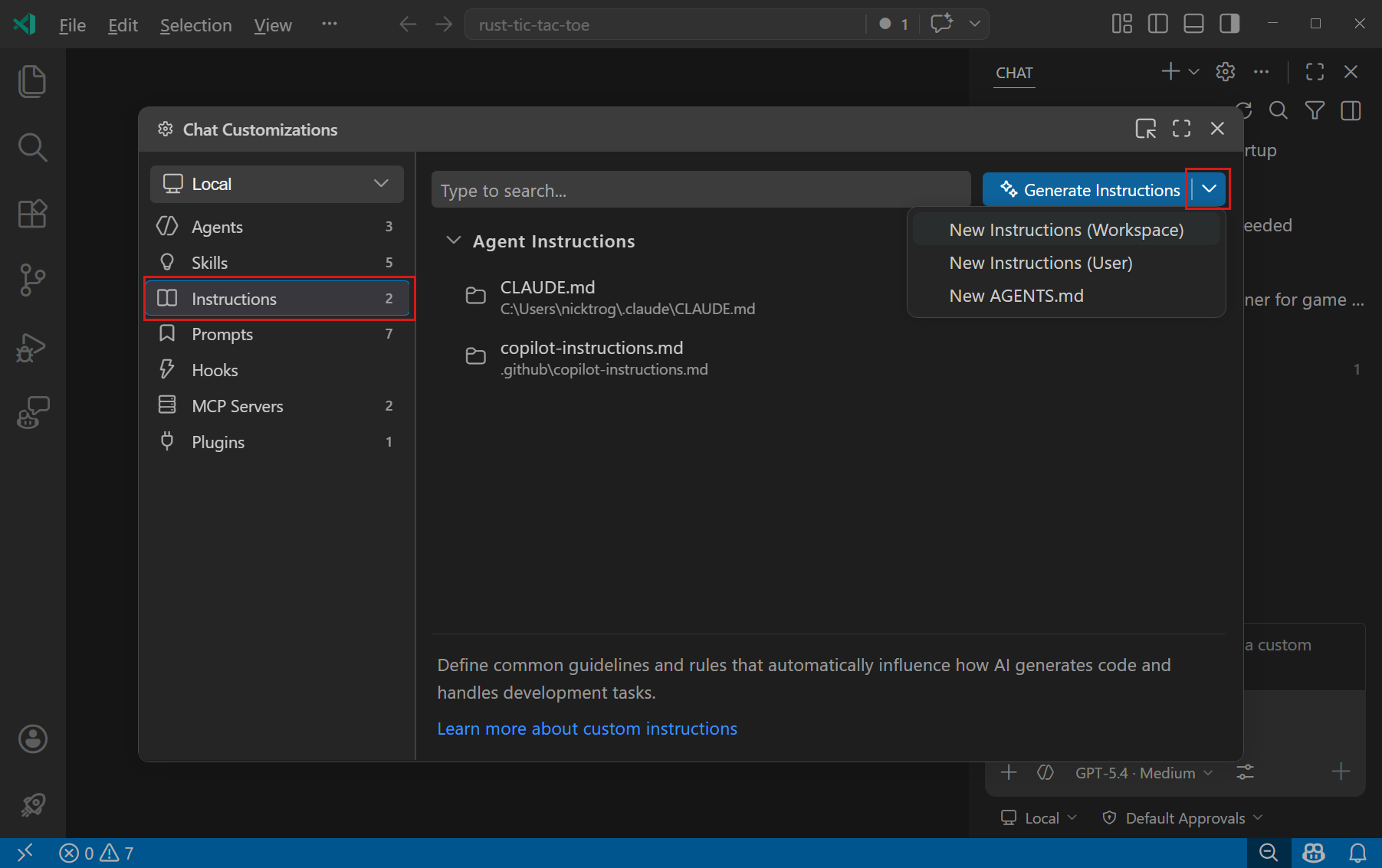
Creating a new instructions file in the Agent Customizations editor:
# 15. ORGANIZATION ADMINISTRATION
Q. How do you use GitHub Copilot for unit test generation?
Copilot excels at generating unit tests. Use /tests slash command, Inline Chat, or Chat with specific instructions.
Method 1: Slash command
# Select a function/class → open Chat → type:
/tests

# Or with specifics:
/tests using Vitest, test happy path, edge cases, and error scenarios
Method 2: Inline Chat
# Select the function, press Ctrl+I:
"Generate comprehensive Jest unit tests including mocking of dependencies"
Method 3: Chat with file reference
#file:src/services/order.service.ts
Generate unit tests for the OrderService class using Jest and ts-jest.
Mock the OrderRepository and PaymentService dependencies.
Test: createOrder, cancelOrder, getOrderById
Include: success cases, not-found errors, payment failures
Example — Copilot generates tests for this service:
// src/services/cart.service.ts
export class CartService {
  constructor(private readonly cartRepo: CartRepository) {}

  async addItem(userId: string, productId: string, qty: number): Promise<Cart> {
    if (qty <= 0) throw new Error('Quantity must be positive');
    const cart = await this.cartRepo.findOrCreate(userId);
    cart.items.push({ productId, qty });
    return this.cartRepo.save(cart);
  }
}
// Copilot generates: __tests__/cart.service.test.ts
import { CartService } from '../src/services/cart.service';
import { CartRepository } from '../src/repositories/cart.repository';

jest.mock('../src/repositories/cart.repository');

describe('CartService', () => {
  let cartService: CartService;
  let mockCartRepo: jest.Mocked<CartRepository>;

  beforeEach(() => {
    mockCartRepo = new CartRepository() as jest.Mocked<CartRepository>;
    cartService = new CartService(mockCartRepo);
  });

  describe('addItem', () => {
    it('should add item to cart and save', async () => {
      const mockCart = { items: [] };
      mockCartRepo.findOrCreate.mockResolvedValue(mockCart as any);
      mockCartRepo.save.mockResolvedValue({ ...mockCart, items: [{ productId: 'p1', qty: 2 }] } as any);

      const result = await cartService.addItem('user1', 'p1', 2);

      expect(mockCartRepo.findOrCreate).toHaveBeenCalledWith('user1');
      expect(mockCartRepo.save).toHaveBeenCalled();
      expect(result.items).toHaveLength(1);
    });

    it('should throw when quantity is zero', async () => {
      await expect(cartService.addItem('user1', 'p1', 0))
        .rejects.toThrow('Quantity must be positive');
    });

    it('should throw when quantity is negative', async () => {
      await expect(cartService.addItem('user1', 'p1', -1))
        .rejects.toThrow('Quantity must be positive');
    });
  });
});
# 16. PRIVACY AND DATA
Q. How do you configure GitHub Copilot at the organization level?
GitHub organization admins can centrally control Copilot access, model availability, and security policies.
1. Enable Copilot for the organization:
GitHub.com → Organization settings → Copilot → Access
→ Enable for: All members / Selected members / Disabled
2. Policy controls (Copilot Business/Enterprise):
Organization settings → Copilot → Policies:
✅ Suggestions matching public code: Block / Allow
✅ Allow use of Copilot Chat: On / Off
✅ Allow use of Copilot in GitHub.com: On / Off
✅ Allow Copilot Extensions: On / Off (specific extensions)
✅ Copilot Workspace: On / Off
3. Manage via GitHub REST API:
# List Copilot seat assignments in the org
gh api orgs/{org}/copilot/billing/seats \
  --header "Accept: application/vnd.github+json"

# Add a user to Copilot access
gh api orgs/{org}/copilot/billing/selected_users \
  --method POST \
  --field selected_usernames[]="octocat"

# Remove a user
gh api orgs/{org}/copilot/billing/selected_users \
  --method DELETE \
  --field selected_usernames[]="octocat"

# Get usage metrics (seats used vs assigned)
gh api orgs/{org}/copilot/usage \
  --header "Accept: application/vnd.github+json"
4. Audit logs:
# View Copilot-related audit log events
gh api orgs/{org}/audit-log \
  --field phrase="action:copilot" \
  --field per_page=100
# 17. LANGUAGE SUPPORT
Q. What privacy and data considerations apply to GitHub Copilot?
Understanding what data Copilot sends and stores is important for compliance:
Data sent to GitHub/OpenAI:
- Code context (surrounding code, open tabs)
- Your prompts in Chat
- File names and paths
Data retention policies:
| Plan | Prompt retention | Suggestion retention |
|---|---|---|
| Copilot Individual | 28 days (can opt out) | Not retained |
| Copilot Business | Not retained | Not retained |
| Copilot Enterprise | Not retained | Not retained |
Key settings for data privacy:
// .vscode/settings.json
{
  // Opt out of telemetry
  "github.copilot.advanced": {
    "telemetry.enabled": false
  }
}
# Organization policy: disable training data collection
GitHub.com → Org Settings → Copilot → Policies
→ "Allow GitHub to use my code for product improvements": Off
For regulated industries (HIPAA, GDPR, SOC 2):
- Copilot Business/Enterprise: Prompts and suggestions are NOT used to train the model
- GitHub has a BAA (Business Associate Agreement) available for HIPAA compliance (Enterprise)
- Copilot Enterprise keeps data within the GitHub infrastructure (no third-party model providers see your code for Business/Enterprise)
- Use
.copilotignoreor.gitignore-style exclusions to prevent Copilot from reading sensitive files:
# .copilotignore — prevent Copilot from reading these files
secrets/
*.pem
*.key
.env*
config/production.json
src/compliance/
# 18. ENTERPRISE BEST PRACTICES
Q. How does GitHub Copilot support multiple programming languages?
Copilot works across virtually all programming languages. Quality of suggestions correlates with how well-represented that language is in public training data.
Tier 1 (Excellent support): Python, JavaScript, TypeScript, Java, C#, C++, Go, Ruby, Rust, PHP
Tier 2 (Good support): Kotlin, Swift, Scala, R, MATLAB, Dart, Lua, Perl, Shell/Bash
Tier 3 (Basic support): COBOL, Fortran, Erlang, Haskell, niche DSLs
Cross-language examples Copilot handles:
# Python — data processing
# Read a parquet file and return rows where sales > 1000, grouped by region
import pandas as pd

def get_high_sales_by_region(path: str) -> pd.DataFrame:
    df = pd.read_parquet(path)
    return df[df['sales'] > 1000].groupby('region')['sales'].sum().reset_index()
// Go — concurrent web scraper
// Fetch URLs concurrently using a worker pool, return results
func fetchAll(urls []string, workers int) []Result {
    jobs := make(chan string, len(urls))
    results := make(chan Result, len(urls))

    for i := 0; i < workers; i++ {
        go func() {
            for url := range jobs {
                resp, err := http.Get(url)
                results <- Result{URL: url, Status: resp.StatusCode, Err: err}
            }
        }()
    }

    for _, url := range urls {
        jobs <- url
    }
    close(jobs)

    var all []Result
    for range urls {
        all = append(all, <-results)
    }
    return all
}
# Bash — find and archive log files older than 30 days
find /var/log/app -name "*.log" -mtime +30 -exec gzip {} \; -exec mv {}.gz /archive/ \;
-- SQL — find customers who bought in consecutive months
SELECT customer_id
FROM orders
GROUP BY customer_id
HAVING COUNT(DISTINCT DATE_TRUNC('month', order_date)) =
       DATEDIFF('month', MIN(order_date), MAX(order_date)) + 1
Q. What are GitHub Copilot best practices for enterprise teams?
1. Set up repository-level custom instructions
<!-- .github/copilot-instructions.md -->
Always use company-approved libraries only (see APPROVED_LIBRARIES.md).
Never suggest storing secrets in code — use Azure Key Vault references.
Follow the error handling pattern in src/shared/errors.ts.
All database queries must go through the Repository layer.
2. Create a .copilotignore for sensitive files
# .copilotignore
.env*
secrets/
certs/
**/migrations/*.sql   # prevent leaking schema to completions
internal/compliance/
3. Use prompt files / reusable prompts
<!-- .github/prompts/add-endpoint.prompt.md -->
Create a new REST endpoint following these rules:
1. Route in src/routes/ with OpenAPI annotation
2. Controller in src/controllers/ (no business logic)
3. Service in src/services/ (all business logic)
4. Zod validation schema in src/schemas/
5. Unit tests in __tests__/ with 80%+ coverage
6. Update the Swagger docs in openapi.yaml
4. Standardize keyboard shortcuts across the team
// Share this keybindings.json via Settings Sync or team onboarding docs
[
  { "key": "ctrl+shift+i", "command": "github.copilot.edits.attachContext" },
  { "key": "ctrl+i",       "command": "github.copilot.inlineChat.start" },
  { "key": "ctrl+alt+i",   "command": "workbench.panel.chat.view.copilot.focus" }
]
5. Integrate Copilot into CI/CD
# .github/workflows/copilot-autofix.yml
name: Copilot Autofix
on:
  pull_request:
    types: [opened, synchronize]

jobs:
  security-scan:
    runs-on: ubuntu-latest
    permissions:
      security-events: write
      pull-requests: write
    steps:
      - uses: actions/checkout@v4
      - name: Run CodeQL
        uses: github/codeql-action/analyze@v3
        # Copilot Autofix will automatically suggest fixes for detected issues
6. Measure adoption with usage metrics
# Monthly Copilot usage report for the org
gh api orgs/{org}/copilot/usage \
  --header "Accept: application/vnd.github+json" | \
  jq '[.[] | {date: .day, accepted: .total_acceptances_count, suggested: .total_suggestions_count, acceptance_rate: (.total_acceptances_count / .total_suggestions_count * 100 | round)}]'
# 19. MODEL CONTEXT PROTOCOL (MCP)
Q. What is the Model Context Protocol (MCP) and why does it matter for GitHub Copilot?
Model Context Protocol (MCP) is an open standard (introduced by Anthropic in 2024) that defines how AI models communicate with external tools, data sources, and services through a uniform interface. GitHub Copilot adopted MCP support in VS Code in 2025, enabling Agent mode to call any MCP-compatible server alongside its built-in tools.
Core idea — a universal plug-in system for AI:
┌─────────────────────────────────────────┐
│           GitHub Copilot (Client)        │
│           (Agent Mode / Chat)            │
└───────────────┬─────────────────────────┘
                │  MCP Protocol (JSON-RPC 2.0)
     ┌──────────┴──────────┐
     │                     │
┌────▼──────┐       ┌──────▼──────┐
│ MCP Server│       │ MCP Server  │
│ (GitHub)  │       │ (Filesystem)│
└───────────┘       └─────────────┘
Key components:
| Component | Description |
|---|---|
| MCP Host | The AI client (VS Code + Copilot) that connects to servers |
| MCP Server | A lightweight process that exposes tools, resources, and prompts |
| Transport | Communication layer: stdio (local process) or HTTP with SSE (remote) |
| Tools | Callable functions (e.g., read_file, run_query, create_issue) |
| Resources | Readable data sources (e.g., files, database records, API responses) |
| Prompts | Pre-built prompt templates the model can invoke |
Why it matters:
- Extends Copilot beyond the codebase — access databases, APIs, cloud services
- No vendor lock-in — one protocol, works across Claude, GPT-4, Copilot
- Community ecosystem — hundreds of pre-built MCP servers available
Q. How do you configure MCP servers for GitHub Copilot in VS Code?
MCP servers are declared in a JSON config file. VS Code supports both user-level (global) and workspace-level (.vscode/mcp.json) configuration.
Workspace-level — .vscode/mcp.json:
{
  "servers": {
    "filesystem": {
      "type": "stdio",
      "command": "npx",
      "args": ["-y", "@modelcontextprotocol/server-filesystem", "${workspaceFolder}"],
      "env": {}
    },
    "github": {
      "type": "stdio",
      "command": "npx",
      "args": ["-y", "@modelcontextprotocol/server-github"],
      "env": {
        "GITHUB_PERSONAL_ACCESS_TOKEN": "${env:GITHUB_TOKEN}"
      }
    },
    "postgres": {
      "type": "stdio",
      "command": "npx",
      "args": ["-y", "@modelcontextprotocol/server-postgres"],
      "env": {
        "POSTGRES_CONNECTION_STRING": "${env:DATABASE_URL}"
      }
    }
  }
}
User-level — VS Code settings.json:
{
  "mcp": {
    "servers": {
      "brave-search": {
        "type": "stdio",
        "command": "npx",
        "args": ["-y", "@modelcontextprotocol/server-brave-search"],
        "env": {
          "BRAVE_API_KEY": "${env:BRAVE_API_KEY}"
        }
      }
    }
  }
}
Using MCP tools in Copilot Agent mode:
- Open Copilot Chat (
Ctrl+Alt+I) and switch to Agent mode - Copilot lists available MCP tools automatically
- Ask naturally — Copilot decides which tools to call:
@workspace List all open GitHub issues labeled "bug" and create a summary report
Copilot will invoke the github MCP server’s list_issues tool automatically.
Managing servers via the Command Palette:
View > Command Palette > MCP: List Servers    — see all configured servers
View > Command Palette > MCP: Restart Server  — restart a failing server
View > Command Palette > MCP: View Logs       — debug server output
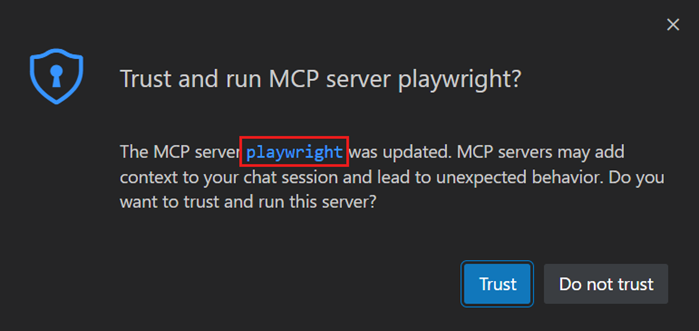
MCP server trust prompt when starting a new server:
Q. What are the most useful pre-built MCP servers for development workflows?
The MCP ecosystem has a growing library of official and community servers:
Official @modelcontextprotocol servers:
| Server | Package | Key Tools |
|---|---|---|
| Filesystem | @modelcontextprotocol/server-filesystem |
read_file, write_file, list_directory, search_files |
| GitHub | @modelcontextprotocol/server-github |
list_issues, create_issue, get_pull_request, create_branch |
| PostgreSQL | @modelcontextprotocol/server-postgres |
query, list_tables, describe_table |
| SQLite | @modelcontextprotocol/server-sqlite |
read_query, write_query, list_tables |
| Brave Search | @modelcontextprotocol/server-brave-search |
brave_web_search, brave_local_search |
| Fetch | @modelcontextprotocol/server-fetch |
fetch (HTTP requests) |
| Memory | @modelcontextprotocol/server-memory |
create_entities, search_nodes (knowledge graph) |
| Puppeteer | @modelcontextprotocol/server-puppeteer |
navigate, screenshot, click, fill |
Example: Full-stack workflow with multiple servers
User prompt (Agent mode):
"Check the GitHub issues for the word 'login', read the relevant auth files
 in the codebase, query the users table schema, then propose a fix."

Copilot will:
1. Call github MCP → list_issues (filter: "login")
2. Call filesystem MCP → read_file (auth.ts, login.controller.ts)
3. Call postgres MCP → describe_table("users")
4. Synthesize all results and propose code changes
Install any server locally:
# Install a specific MCP server globally
npm install -g @modelcontextprotocol/server-github

# Or let npx handle it on-demand (recommended — always latest version)
npx -y @modelcontextprotocol/server-github
Q. How do you build a custom MCP server and expose it to GitHub Copilot?
You can write custom MCP servers in Node.js, Python, or any language. The MCP SDK handles the JSON-RPC protocol layer.
Node.js custom MCP server example — internal REST API wrapper:
// mcp-servers/jira-server/index.ts
import { Server } from "@modelcontextprotocol/sdk/server/index.js";
import { StdioServerTransport } from "@modelcontextprotocol/sdk/server/stdio.js";
import {
  CallToolRequestSchema,
  ListToolsRequestSchema,
} from "@modelcontextprotocol/sdk/types.js";

const server = new Server(
  { name: "jira-server", version: "1.0.0" },
  { capabilities: { tools: {} } }
);

// Declare available tools
server.setRequestHandler(ListToolsRequestSchema, async () => ({
  tools: [
    {
      name: "get_sprint_issues",
      description: "Fetch all Jira issues in the current active sprint",
      inputSchema: {
        type: "object",
        properties: {
          project_key: { type: "string", description: "Jira project key, e.g. MYAPP" },
          status: {
            type: "string",
            enum: ["To Do", "In Progress", "Done"],
            description: "Filter by status (optional)",
          },
        },
        required: ["project_key"],
      },
    },
    {
      name: "create_issue",
      description: "Create a new Jira issue",
      inputSchema: {
        type: "object",
        properties: {
          project_key: { type: "string" },
          summary:     { type: "string" },
          description: { type: "string" },
          issue_type:  { type: "string", enum: ["Bug", "Story", "Task"] },
        },
        required: ["project_key", "summary", "issue_type"],
      },
    },
  ],
}));

// Handle tool calls
server.setRequestHandler(CallToolRequestSchema, async (request) => {
  const { name, arguments: args } = request.params;

  if (name === "get_sprint_issues") {
    const { project_key, status } = args as { project_key: string; status?: string };
    const jql = status
      ? `project = ${project_key} AND sprint in openSprints() AND status = "${status}"`
      : `project = ${project_key} AND sprint in openSprints()`;

    const response = await fetch(
      `${process.env.JIRA_BASE_URL}/rest/api/3/search?jql=${encodeURIComponent(jql)}`,
      {
        headers: {
          Authorization: `Basic ${Buffer.from(`${process.env.JIRA_EMAIL}:${process.env.JIRA_API_TOKEN}`).toString("base64")}`,
          "Content-Type": "application/json",
        },
      }
    );
    const data = await response.json();
    return {
      content: [{ type: "text", text: JSON.stringify(data.issues, null, 2) }],
    };
  }

  if (name === "create_issue") {
    const { project_key, summary, description, issue_type } = args as any;
    const response = await fetch(`${process.env.JIRA_BASE_URL}/rest/api/3/issue`, {
      method: "POST",
      headers: {
        Authorization: `Basic ${Buffer.from(`${process.env.JIRA_EMAIL}:${process.env.JIRA_API_TOKEN}`).toString("base64")}`,
        "Content-Type": "application/json",
      },
      body: JSON.stringify({
        fields: {
          project: { key: project_key },
          summary,
          description: {
            type: "doc", version: 1,
            content: [{ type: "paragraph", content: [{ type: "text", text: description ?? "" }] }],
          },
          issuetype: { name: issue_type },
        },
      }),
    });
    const data = await response.json();
    return {
      content: [{ type: "text", text: `Created issue: ${data.key}` }],
    };
  }

  throw new Error(`Unknown tool: ${name}`);
});

// Start stdio transport
const transport = new StdioServerTransport();
await server.connect(transport);
Register the custom server in .vscode/mcp.json:
{
  "servers": {
    "jira": {
      "type": "stdio",
      "command": "npx",
      "args": ["ts-node", "${workspaceFolder}/mcp-servers/jira-server/index.ts"],
      "env": {
        "JIRA_BASE_URL": "${env:JIRA_BASE_URL}",
        "JIRA_EMAIL": "${env:JIRA_EMAIL}",
        "JIRA_API_TOKEN": "${env:JIRA_API_TOKEN}"
      }
    }
  }
}
Python alternative using the MCP Python SDK:
# mcp_servers/db_server.py
from mcp.server import Server
from mcp.server.stdio import stdio_server
from mcp.types import Tool, TextContent
import asyncio, sqlite3, json

server = Server("sqlite-custom")

@server.list_tools()
async def list_tools():
    return [
        Tool(
            name="run_query",
            description="Run a read-only SQL SELECT query against the local SQLite DB",
            inputSchema={
                "type": "object",
                "properties": {"sql": {"type": "string"}},
                "required": ["sql"],
            },
        )
    ]

@server.call_tool()
async def call_tool(name: str, arguments: dict):
    if name == "run_query":
        conn = sqlite3.connect("./app.db")
        cur = conn.cursor()
        cur.execute(arguments["sql"])
        rows = cur.fetchall()
        conn.close()
        return [TextContent(type="text", text=json.dumps(rows, indent=2))]

async def main():
    async with stdio_server() as (r, w):
        await server.run(r, w, server.create_initialization_options())

asyncio.run(main())
Q. What are MCP resources and prompts, and how do they differ from tools?
MCP servers can expose three primitives — tools, resources, and prompts — each serving a distinct purpose:
| Primitive | Initiated by | Use case |
|---|---|---|
| Tools | The AI model | Perform actions / side-effects (create file, call API, run query) |
| Resources | The host / user | Expose read-only data for context injection (files, DB rows, config) |
| Prompts | The user | Pre-built, parameterized prompt templates stored server-side |
Exposing a resource (live API docs as context):
import { ListResourcesRequestSchema, ReadResourceRequestSchema } from "@modelcontextprotocol/sdk/types.js";

server.setRequestHandler(ListResourcesRequestSchema, async () => ({
  resources: [
    {
      uri: "api://openapi/spec",
      name: "OpenAPI Specification",
      description: "Current REST API specification in OpenAPI 3.1 format",
      mimeType: "application/json",
    },
  ],
}));

server.setRequestHandler(ReadResourceRequestSchema, async (request) => {
  if (request.params.uri === "api://openapi/spec") {
    const spec = await fetch("http://localhost:3000/openapi.json").then(r => r.json());
    return {
      contents: [{ uri: request.params.uri, mimeType: "application/json", text: JSON.stringify(spec) }],
    };
  }
  throw new Error("Resource not found");
});
Exposing a prompt template (code review checklist):
import { ListPromptsRequestSchema, GetPromptRequestSchema } from "@modelcontextprotocol/sdk/types.js";

server.setRequestHandler(ListPromptsRequestSchema, async () => ({
  prompts: [
    {
      name: "review_pr",
      description: "Structured pull request code review using team conventions",
      arguments: [
        { name: "diff", description: "The git diff to review", required: true },
        { name: "focus", description: "Area to focus on: security | performance | readability", required: false },
      ],
    },
  ],
}));

server.setRequestHandler(GetPromptRequestSchema, async (request) => {
  const { diff, focus = "all" } = request.params.arguments ?? {};
  return {
    description: "PR Review prompt",
    messages: [
      {
        role: "user",
        content: {
          type: "text",
          text: `Review the following diff. Focus on: ${focus}.\n\nChecklist:\n- [ ] No hardcoded secrets\n- [ ] Error handling is present\n- [ ] No N+1 queries\n- [ ] Tests updated\n\nDiff:\n\`\`\`diff\n${diff}\n\`\`\``,
        },
      },
    ],
  };
});
Q. How do you secure MCP servers and handle secrets safely in GitHub Copilot?
MCP servers run with the same OS permissions as VS Code, so security hygiene is critical.
1. Never hardcode secrets — use environment variable references:
// .vscode/mcp.json  (safe — resolves at runtime from shell env)
{
  "servers": {
    "github": {
      "type": "stdio",
      "command": "npx",
      "args": ["-y", "@modelcontextprotocol/server-github"],
      "env": {
        "GITHUB_PERSONAL_ACCESS_TOKEN": "${env:GITHUB_TOKEN}"
      }
    }
  }
}
# Set in shell profile, NOT in the JSON file
export GITHUB_TOKEN="ghp_xxxxxxxxxxxxxxxxxxxx"
2. Use read-only credentials whenever possible:
// Grant only SELECT privilege for the MCP DB user
// SQL: GRANT SELECT ON ALL TABLES IN SCHEMA public TO mcp_readonly;

const pool = new Pool({
  connectionString: process.env.DATABASE_URL,  // read-only user credentials
  ssl: { rejectUnauthorized: true },
});
3. Validate and sanitize all tool inputs (prevent prompt injection):
server.setRequestHandler(CallToolRequestSchema, async (request) => {
  const { name, arguments: args } = request.params;

  if (name === "run_query") {
    const { sql } = args as { sql: string };

    // Reject anything that is not a SELECT statement
    if (!/^\s*SELECT\b/i.test(sql)) {
      return {
        content: [{ type: "text", text: "Error: only SELECT queries are permitted." }],
        isError: true,
      };
    }

    // Use parameterized queries for any user-supplied values
    // Never concatenate raw input into SQL strings
  }
});
4. Restrict filesystem server to safe directories only:
{
  "servers": {
    "filesystem": {
      "type": "stdio",
      "command": "npx",
      "args": [
        "-y",
        "@modelcontextprotocol/server-filesystem",
        "${workspaceFolder}/src",      // ✅ only expose src/
        "${workspaceFolder}/docs"       // ✅ and docs/ — not the whole system
      ]
    }
  }
}
5. Remote MCP servers — always use HTTPS + token auth:
{
  "servers": {
    "remote-api": {
      "type": "http",
      "url": "https://mcp.mycompany.com/v1/sse",
      "headers": {
        "Authorization": "Bearer ${env:MCP_API_TOKEN}"
      }
    }
  }
}
Security checklist for MCP deployments:
| Check | Why |
|---|---|
Use ${env:VAR} for all secrets |
Prevents leaking tokens into version control |
| Scope filesystem access narrowly | Limits blast radius of prompt injection |
| Validate tool input schemas strictly | Prevents injection via malicious prompts |
| Use read-only DB credentials | Prevents accidental destructive queries |
| Review community servers before use | Supply chain risk — audit the source code |
Pin server versions (@1.2.3) |
Prevents breaking changes from auto-updates |